属性编辑器
Attribute Editor 是中央窗口之一,用于加载 Scene 中每个 Layer 的 UI,以操控属性、设置关键帧和建立连接。
每个 Layer 的 Attribute Editor UI 包含一组独特的属性,这些属性包含在 Control Row 中。
Control Row 类型 → Control Row 交互 →
属性只有在它们是动画属性时才会出现在 Scene Window 中,这意味着必须在 Attribute Editor 中为该属性设置关键帧。参见 Control Rows - 交互 了解如何设置关键帧。
可以同时加载多个 UI,提供全局视图和多操作访问。
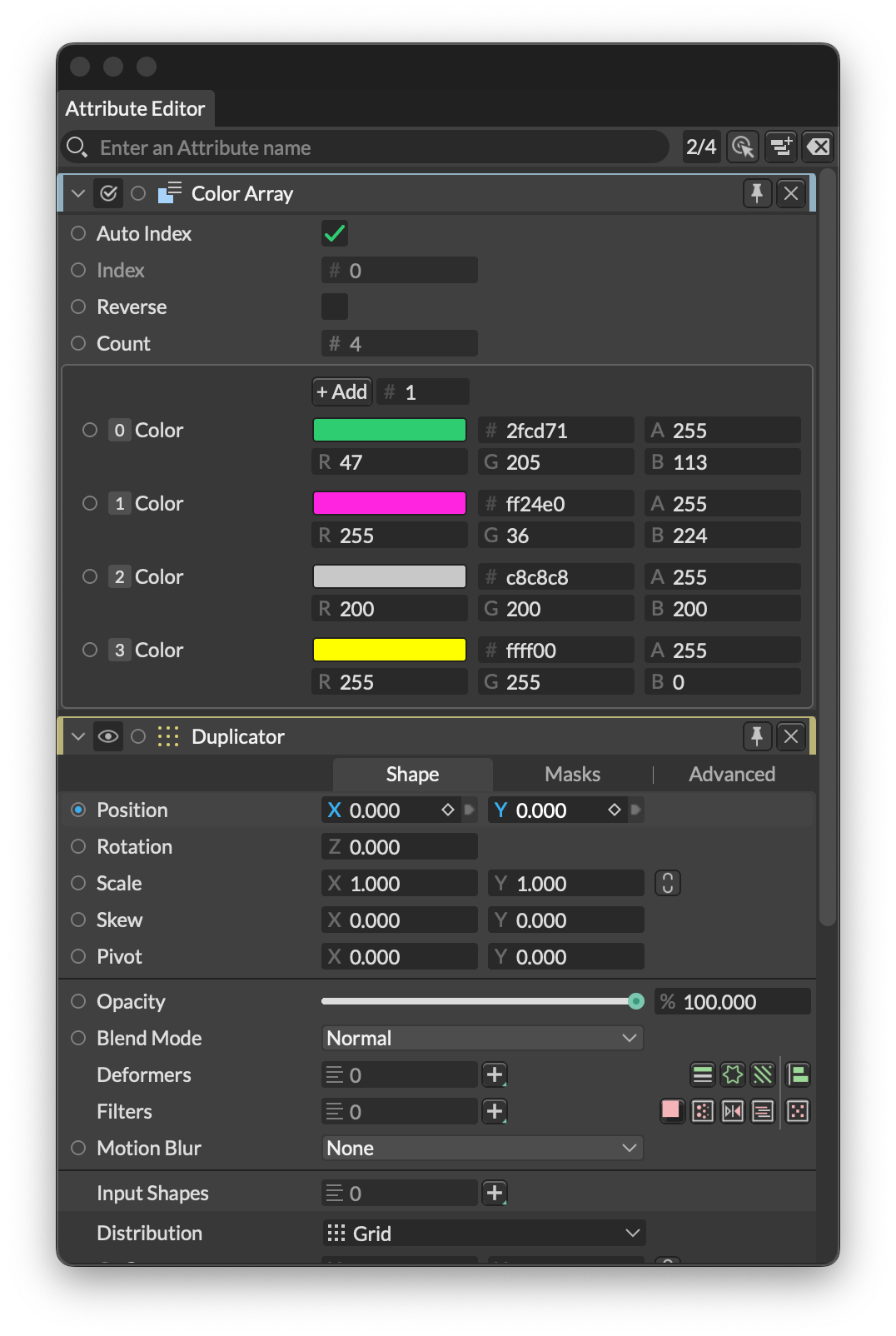
Attribute Editor UI
窗口 UI
标题为“窗口 UI”的章节Search Bar
标题为“Search Bar”的章节过滤 Layer UI 中的属性。例如,选择 4 个 Shape,点击 Show Selected,在搜索栏中输入 “position”,然后调节 position.x — 每个 Shape 的 position.x 将被设置为相同的值。
UI Count
标题为“UI Count”的章节显示当前加载的 UI 数量及最大数量。达到最大值时,下一个加载的 UI 将移除堆栈底部的 UI。最大值可通过 Max Attribute Editor UIs 偏好设置 设置。
Live Mode
标题为“Live Mode”的章节启用 Live Mode 后,在 Scene Window 中选择一个 Layer 将清除 Attribute Editor 并加载选中 Layer 的 UI。
Show Selected
标题为“Show Selected”的章节清除 Attribute Editor 并加载选中 Layer 的 UI。
Clear All
标题为“Clear All”的章节从 Attribute Editor 中移除所有 Layer UI。
Layer UI
标题为“Layer UI”的章节Dependency Graph
标题为“Dependency Graph”的章节当 Layer 有输入/输出连接时,此按钮会出现。点击它加载非编辑模式的 Dependency Graph 弹出预览。
Connection Icons
标题为“Connection Icons”的章节当 Layer 有输入/输出连接时,连接图标会出现在这里。
User Presets
标题为“User Presets”的章节参见 User Presets。
Pin
标题为“Pin”的章节通过固定 Layer 使其持久化。将标题栏中的图钉图标  设置为其绿色状态
  以防止 UI 被移除。
Close
标题为“Close”的章节点击标题栏左上角的 x 图标从 Attribute Editor 中移除 Layer 的 UI。
使用 Layer
标题为“使用 Layer”的章节Layer 的 UI 在创建时出现在 Attribute Editor 中。还有几种加载 Layer UI 的方法:
- 从 Scene Window 拖拽 Layer 到 Attribute Editor。
- 在 Scene Window 中双击一个 Layer。
- 在 Attribute Editor 中开启 Live Mode。开启后,选择 Scene Window 中的 Layer 将清除 Attribute Editor 并加载选中 Layer 的 UI。
在 Scene Window 中按住 Option/Alt 并双击 Layer 可清除 Attribute Editor。
要了解如何与属性交互,请参见 Control Rows。
在 Attribute Editor 中右键单击 Layer 的标题栏,可以根据 Layer 类型访问以下部分或全部选项:
Copy Layer Id - 将 Layer 的 ID 复制到剪贴板。在编写 JavaScript API 脚本时很有用。
Reset all Attributes - 将除 Gradient 和 Graph 小部件之外的所有属性重置为默认值。不会移除任何连接或关键帧。
Delete all Animation - 删除 Layer 上的所有关键帧。
Advanced:
- Wireframe - 勾选后,Shape 将以线框形式显示在 Viewport 中。
Context:
- Filter Time Offset - 从此计算中移除所有 Time Offset Context。
- Filter Index - 从此计算中移除所有 Index Context。
- Filter Position - 从此计算中移除所有 Position Context。