屬性編輯器
Attribute Editor 是中央視窗之一,用於載入 Scene 中每個 Layer 的 UI,以操控屬性、設定關鍵影格和建立連接。
每個 Layer 的 Attribute Editor UI 包含一組獨特的屬性,這些屬性包含在 Control Row 中。
Control Row 類型 → Control Row 互動 →
屬性只有在它們是動畫屬性時才會出現在 Scene Window 中,這意味著必須在 Attribute Editor 中為該屬性設定關鍵影格。參見 Control Rows - 互動 了解如何設定關鍵影格。
可以同時載入多個 UI,提供全域檢視和多操作存取。
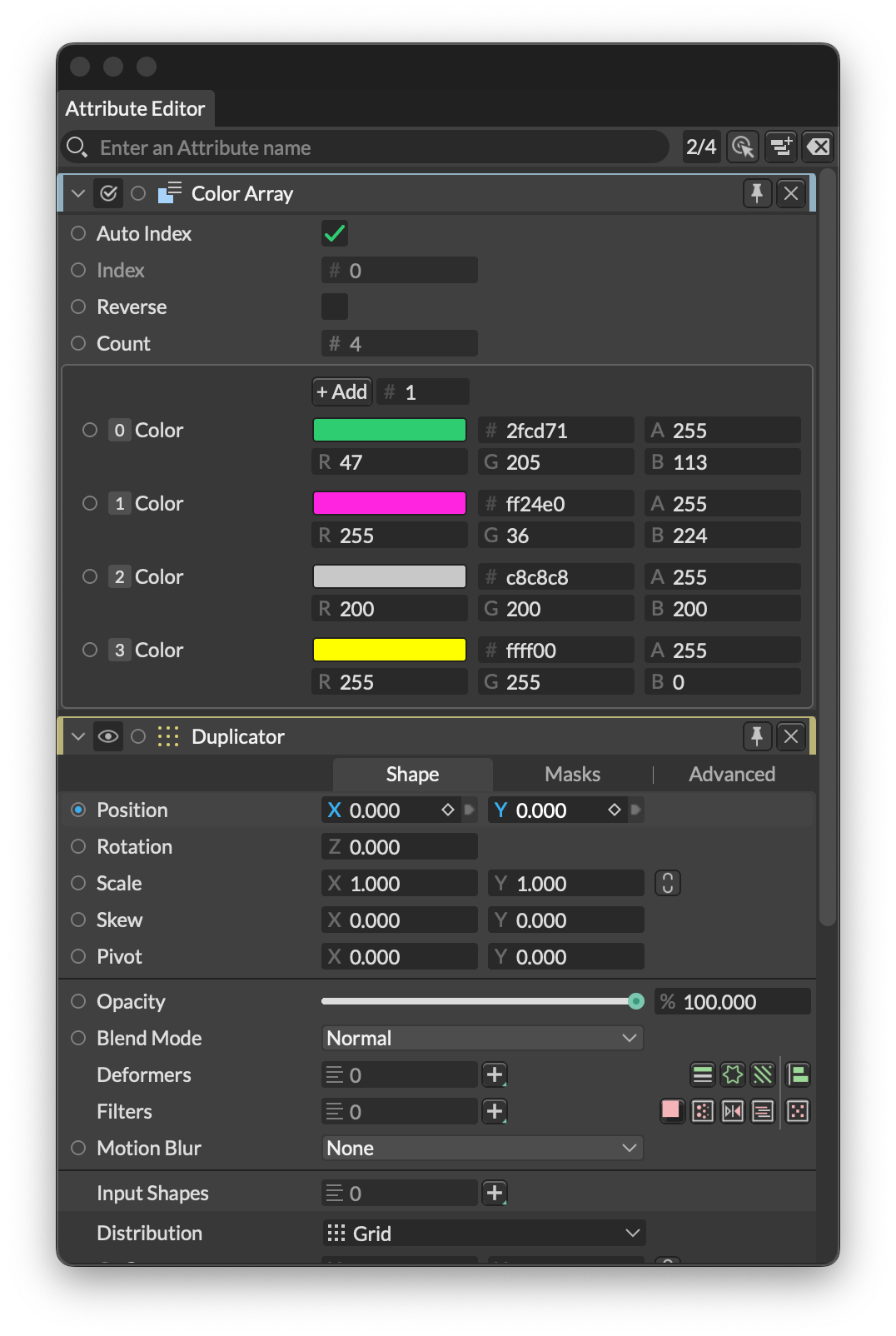
Attribute Editor UI
視窗 UI
标题为“視窗 UI”的章节Search Bar
标题为“Search Bar”的章节篩選 Layer UI 中的屬性。例如,選取 4 個 Shape,點擊 Show Selected,在搜尋列中輸入 “position”,然後調節 position.x — 每個 Shape 的 position.x 將被設定為相同的值。
UI Count
标题为“UI Count”的章节顯示目前載入的 UI 數量及最大數量。達到最大值時,下一個載入的 UI 將移除堆疊底部的 UI。最大值可透過 Max Attribute Editor UIs 偏好設定 設定。
Live Mode
标题为“Live Mode”的章节啟用 Live Mode 後,在 Scene Window 中選取一個 Layer 將清除 Attribute Editor 並載入選取 Layer 的 UI。
Show Selected
标题为“Show Selected”的章节清除 Attribute Editor 並載入選取 Layer 的 UI。
Clear All
标题为“Clear All”的章节從 Attribute Editor 中移除所有 Layer UI。
Layer UI
标题为“Layer UI”的章节Dependency Graph
标题为“Dependency Graph”的章节當 Layer 有輸入/輸出連接時,此按鈕會出現。點擊它載入非編輯模式的 Dependency Graph 彈出預覽。
Connection Icons
标题为“Connection Icons”的章节當 Layer 有輸入/輸出連接時,連接圖示會出現在這裡。
User Presets
标题为“User Presets”的章节參見 User Presets。
Pin
标题为“Pin”的章节透過固定 Layer 使其持久化。將標題列中的圖釘圖示設為其綠色狀態以防止 UI 被移除。
Close
标题为“Close”的章节點擊標題列左上角的 x 圖示從 Attribute Editor 中移除 Layer 的 UI。
使用 Layer
标题为“使用 Layer”的章节Layer 的 UI 在建立時出現在 Attribute Editor 中。還有幾種載入 Layer UI 的方法:
- 從 Scene Window 拖曳 Layer 到 Attribute Editor。
- 在 Scene Window 中按兩下一個 Layer。
- 在 Attribute Editor 中開啟 Live Mode。
在 Scene Window 中按住 Option/Alt 並按兩下 Layer 可清除 Attribute Editor。
要了解如何與屬性互動,請參見 Control Rows。
在 Attribute Editor 中右鍵按一下 Layer 的標題列,可以根據 Layer 類型存取以下部分或全部選項:
Copy Layer Id - 將 Layer 的 ID 複製到剪貼簿。
Reset all Attributes - 將屬性重設為預設值(不會移除連接或關鍵影格)。
Delete all Animation - 刪除 Layer 上的所有關鍵影格。
Advanced:
- Wireframe - 勾選後,Shape 將以線框形式顯示在 Viewport 中。
Context:
- Filter Time Offset - 從此計算中移除所有 Time Offset Context。
- Filter Index - 從此計算中移除所有 Index Context。
- Filter Position - 從此計算中移除所有 Position Context。